



The Talent Search Pass on Creativepool is your own personal headhunting tool. Below is a quick introduction to how to use it.
There are 2 parts to the search: the keyword and the auto-suggestion search. These both work in tandem and can be manipulated together to find the perfect candidate.
The auto-suggestions are what the candidate has selected when they have joined the site and they use it to describe what it is that they do. The keyword search will scour through a persons entire profile and CV/Resume and will return results if the exact words that you are searching for are found. The keyword search is ideal for searching for certain programmes, companies, clients etc. It is not good at looking for generic job titles as any mention in the text of the job title will be returned.
Searching
Suggested Positions
This is the main engine behind how the search works. When candidates join Creativepool this is the exact list they see. You may find in this section that some of the job titles overlap. We urge you to try as many combinations as you think are applicable to ensure that you get to see all of the candidates registered with us.
Suggested Locations
Using locations that are not in the auto-suggestions is fine. If not using the auto-suggest the search will hunt through the persons entire profile and CV to find the words that you have put in. Using the auto-suggestion regions is likely to give you a more accurate idea of where a candidate can work as this is where they have selected that they are looking.
Filters
To the right of the search box you will find a number of search filters:
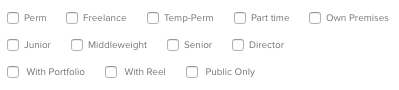
You can tick as many of these as you think are applicable:
Contract Type
PERM - to bring up the details of those who are looking for permanent work.
TEMP TO PERM - for people who are interested in roles that may turn in to a permanent role.
TEMP - for freelancers and those that are looking for temporary work.
PART TIME - for people who are looking for only a few hours a day.
FROM EMPLOYEE PREMISES - these individuals can work off site.
Skill level
Junior, Middleweight, Senior, Director. This is filled out by the candidates themselves - so it is what level they think they are! You can click multiple of these to get the best spread.
Portfolio, Reel, Public
Only want to see people that have a Portfolio or Showreel then tick on these options.
The "Public Only" will only show public profiles, including hiding your connections that have hidden profiles.
Results
Discovery Mode v List Mode

The Search Results have 2 ways of displaying your search result.
Discovery Mode is for when you are looking for a particular style - List mode for when you are looking for a particular person.
You can easily switch between the 2 of them by clicking on the buttons.
Filters
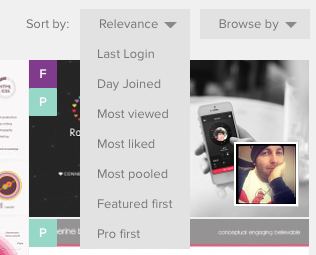
You can filter your results further to ensure that you have the most relevant candidates.
Last Login - will put the latest people to login to the top of the list.
Day Joined - will put the latest people to join at the top of the list.
Most viewed - will put the most viewed profiles at the top.
Most pooled - will put the people whose work has been added to others Inspiration Pools to the top.
Featured first - Our community managers go through all of the work that has been uploaded to the site everyday and Spotlight the best work. Featured first puts those people that have been Spotlighted to the top of the list.
Pro first - This puts the people who have bought Pro Accounts on the site to the top of the list.